
TechSmith ®
TechSmith ®

Recommended Edits for Camtasia Online Videos

Learn some recommended edits and enhancements to complete in Camtasia Editor before exporting your final video.

 

Send your Camtasia online project to Camtasia Editor to improve your video. Try these recommended edits to perfect your video before sharing with others.

Send Project to Camtasia Editor

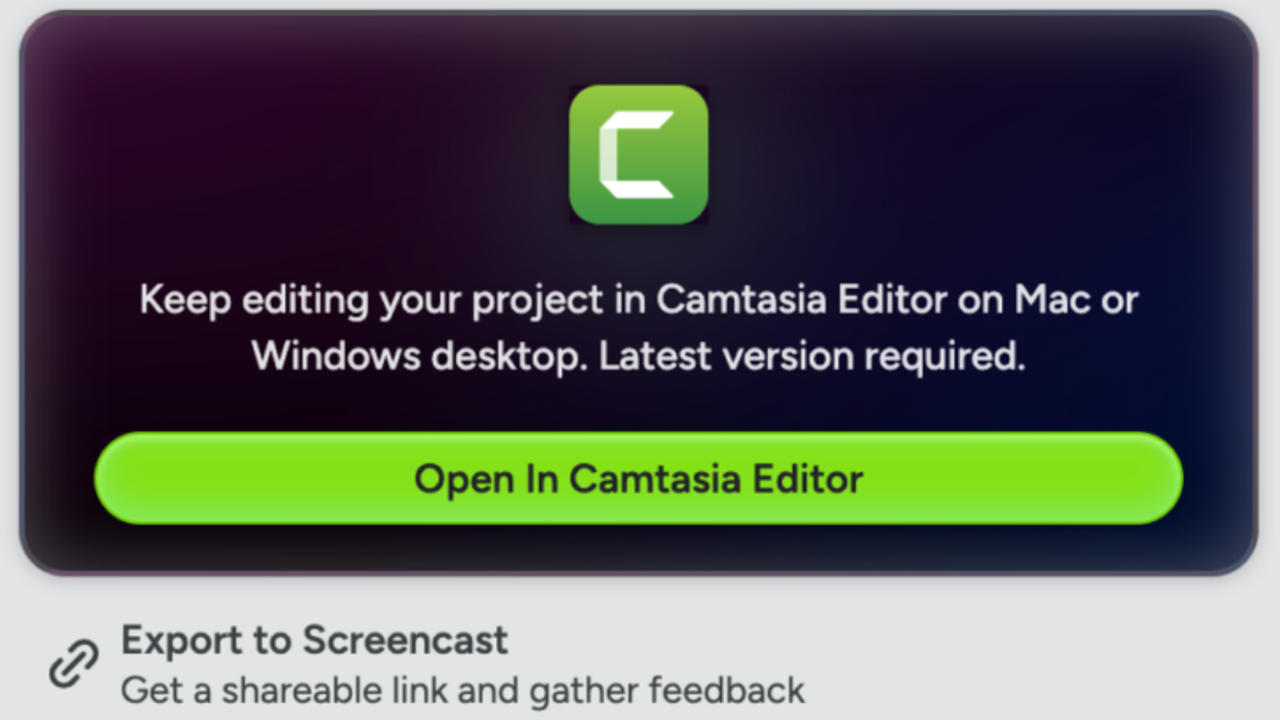
After recording your scenes, send the project to Camtasia Editor on the desktop to continue editing and export your final video. See Export & Share Videos from Camtasia Online.
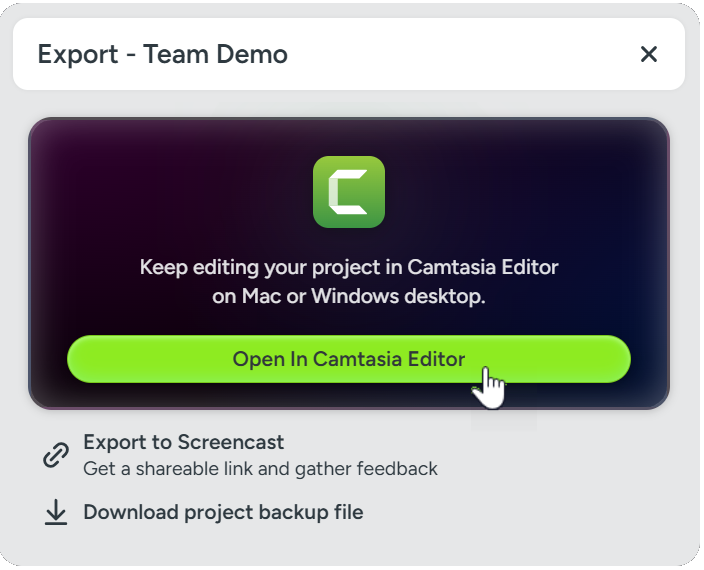
Export dialog

Add Transitions between Scenes

Transitions help you create a smooth visual transition between scenes. See Add a Transition.

View Steps
  1. Select the Transitions tab.
  2. To find a transition, complete any of the following:
  • Browse the list of transitions.
  • To filter the list of transitions, select an option from the Type dropdown.
  • Enter a type or transition name in the Search field.
    Transitions tab with Type dropdown and Search field
  • Drag your cursor over the transition thumbnail to preview it.
    Drag cursor over transition to preview
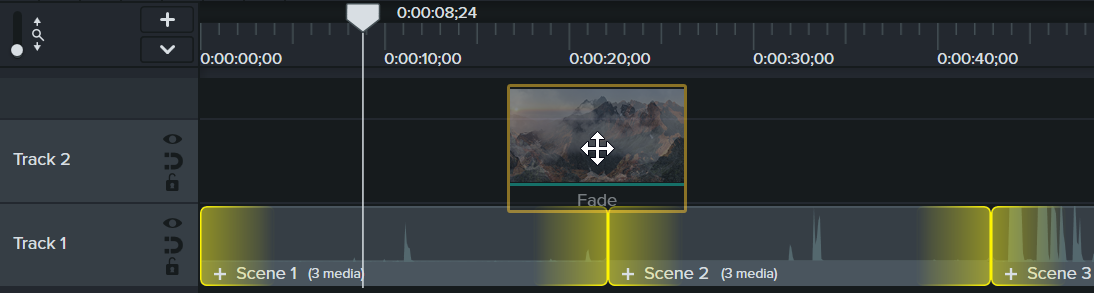
  • Drag the transition onto media on the timeline.
    Transition dragged between scenes on the timeline
  • The drop location on the media impacts where the transition is applied:
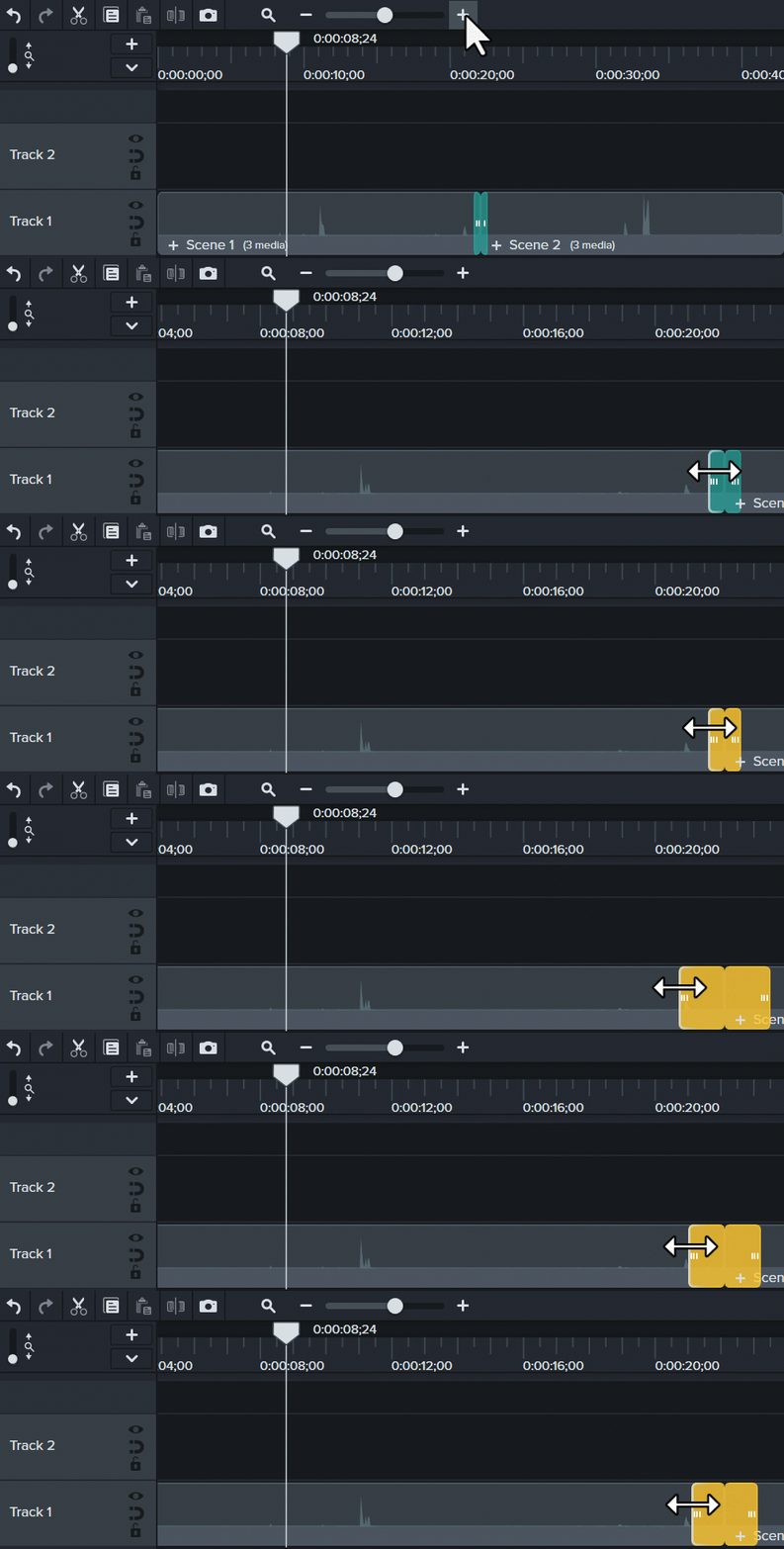
    • Drag to the left end of the media to apply the transition to the beginning.
      start transition
    • Drag to the right end of the media to apply the transition to the end.
      end transition
    • Drag between media to apply the transition to both the beginning and the end.
      transition between clips
  • To change the duration of the transition, drag the end of the transition in or out.
    Drag end to change transition duration
    Tip: Drag the Timeline slider to make it easier to select and edit the transition.
  • Some transitions have additional properties you can customize. Click to select the transition on the timeline and click the Properties button to view the properties available.
  • Cut Out Mistakes

    Remove mistakes or unwanted sections in your content.

    View Steps
    1. Drag the red or green handle on the playhead to select the area to remove.
    2. Click the Cut button Cut button to remove the section.
      A dashed line appears where the clips were stitched together after the cut.
     

    Edit & Position Media within a Scene

    You can further customize each scene by positioning the recorded screen and camera content to get the exact look you want.

    For example, if the camera is covering up a portion of the screen content, you can change its position in Camtasia Editor.
    View Steps
    1. To edit the content in a grouped scene, click the plus button on a scene on the timeline or double-click on the canvas.
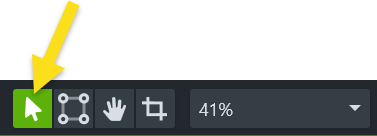
    2. The group opens. In the Canvas toolbar, select Edit mode.
      Edit Mode button
    3. To move the screen or camera recording, click and drag the content to the desired location on the canvas.
    4. To resize the screen or camera recording, click to select the content to edit on the canvas. Drag a corner handle in or out on the canvas or drag the Scale slider in the properties.
    5. To view all scenes on the timeline, click the Main Timeline tab or click the Close button on the scene tab.
     

    To learn more about editing the camera recording, see Record & Edit Camera Video (Picture-in-Picture).

    Remove Background Noise

    Apply the AI Noise Removal audio effect to automatically remove background noise, such as fans and people talking in the background.

    In Camtasia Editor, click the Audio Effects tab and drag the AI Noise Removal option onto a scene on the timeline that contains voice audio.
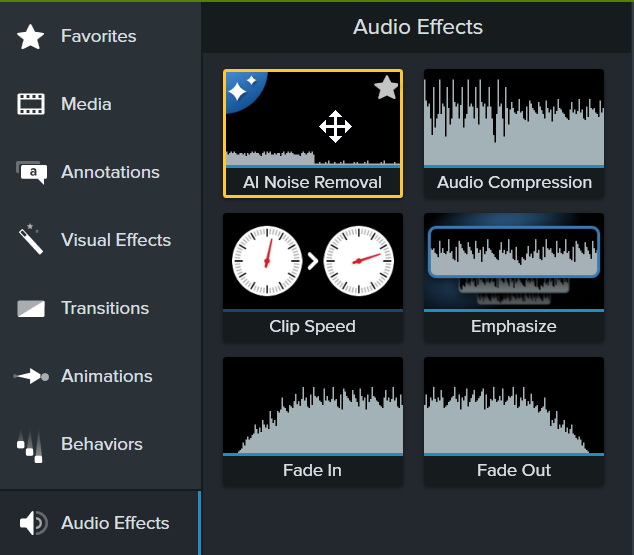
    AI Noise Removal option

    Provide Context with Annotations

    Annotations are visual elements and text to emphasize, direct viewers’ attention, provide additional information, or cover up areas in your video.

    See Add Arrows, Shapes, or Callouts.

    Add a Title

    Add a title or lower-third from Camtasia assets to introduce your video, a speaker, or scene.

    See Add Text to Your Video.

    Export

    After editing, export a final video to share with your audience. You can export a video file onto your computer or upload directly to YouTube or Screencast. See Export & Share Your Video.
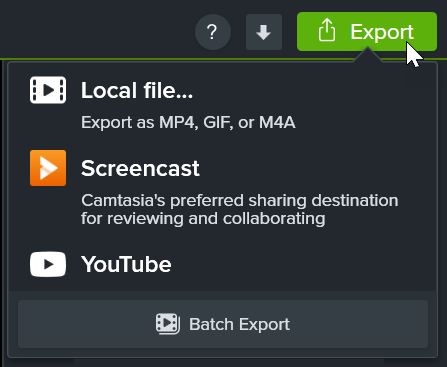
    Camtasia Editor Export menu

    Tous les tutoriels Camtasia