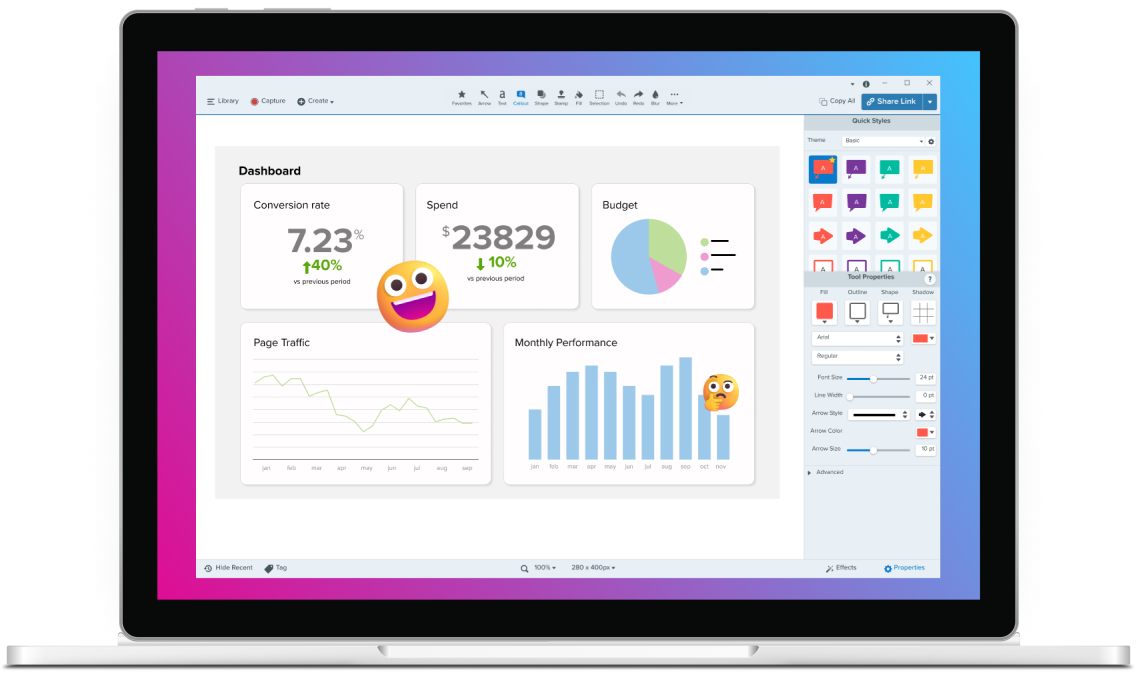




Captures d’écran
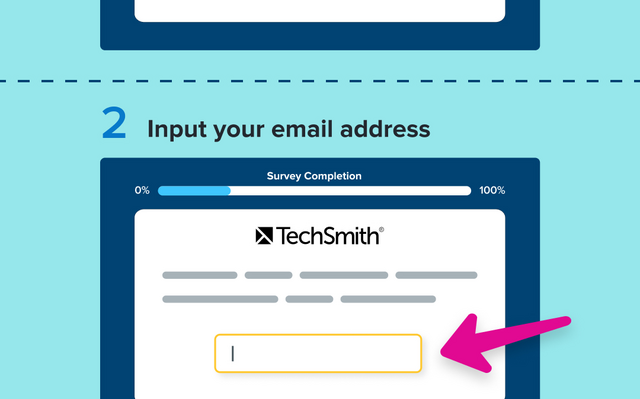
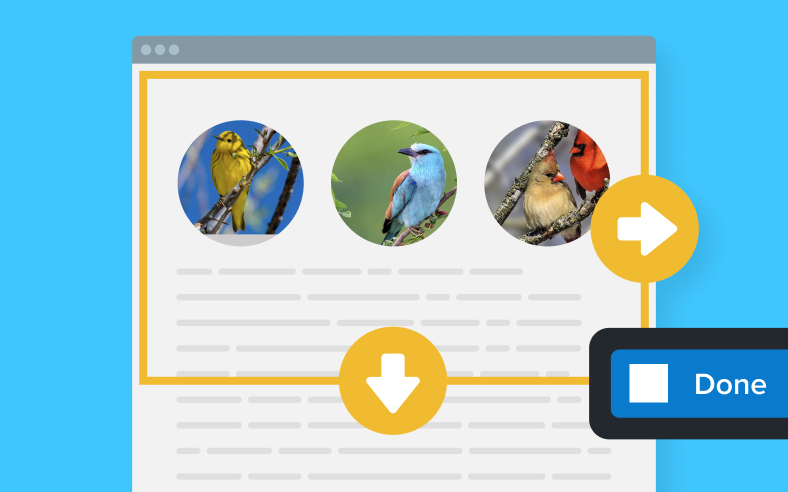
Scrolling capture
Capture content that extends beyond the screen, like full web pages, data sets with lots of columns, and more.
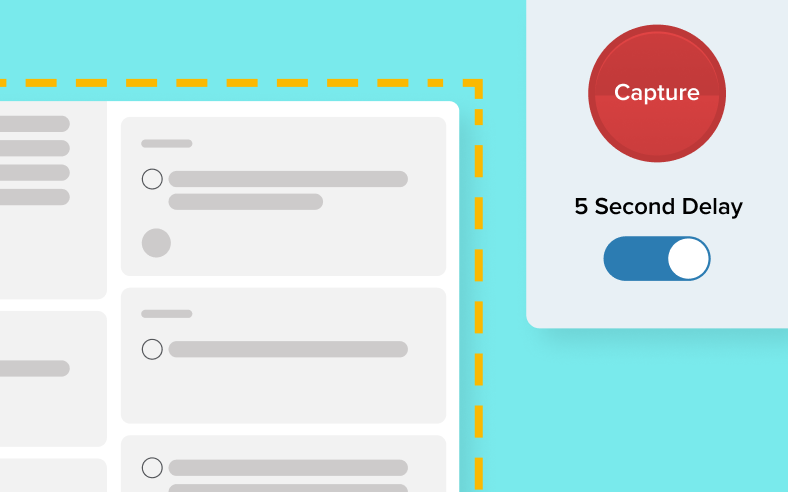
Time delay
Give yourself time to set up a screenshot by specifying a time delay for captures.
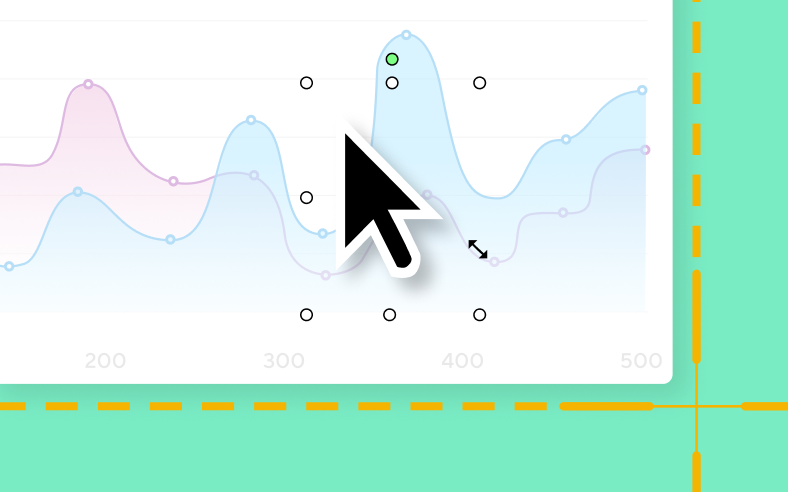
Edit cursor
Remove, resize, and move your cursor within a static screenshot.
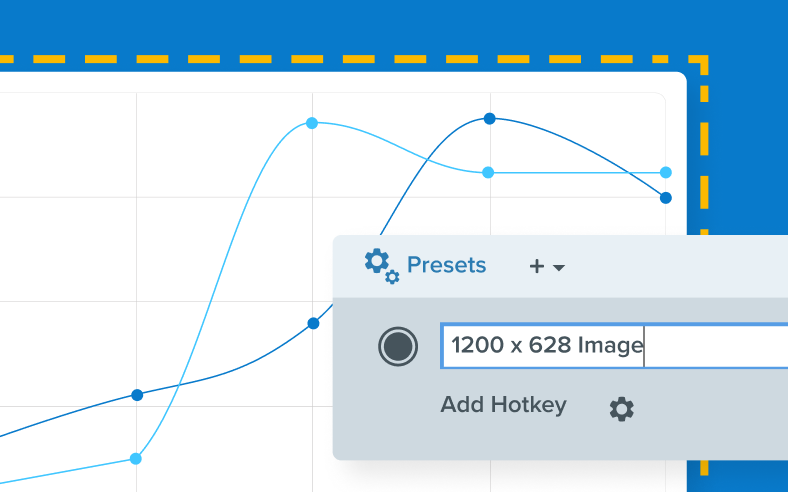
Custom capture presets
Create custom presets for your go-to captures.
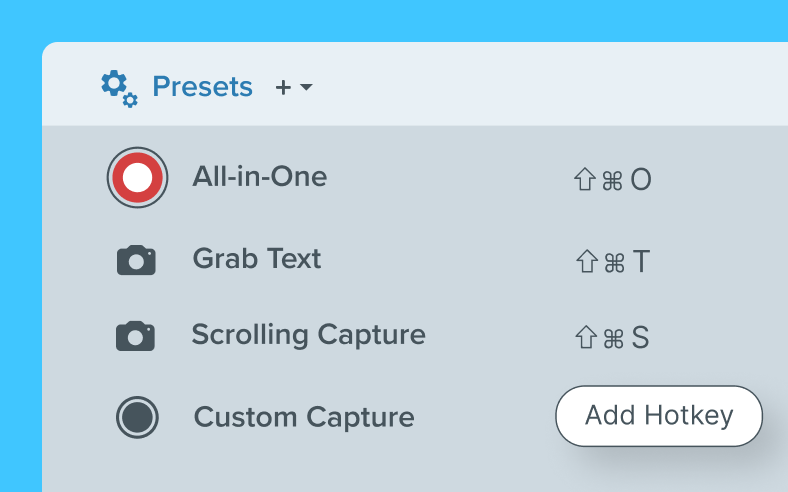
Custom keyboard shortcuts
Set custom keyboard shortcuts for your custom presets.
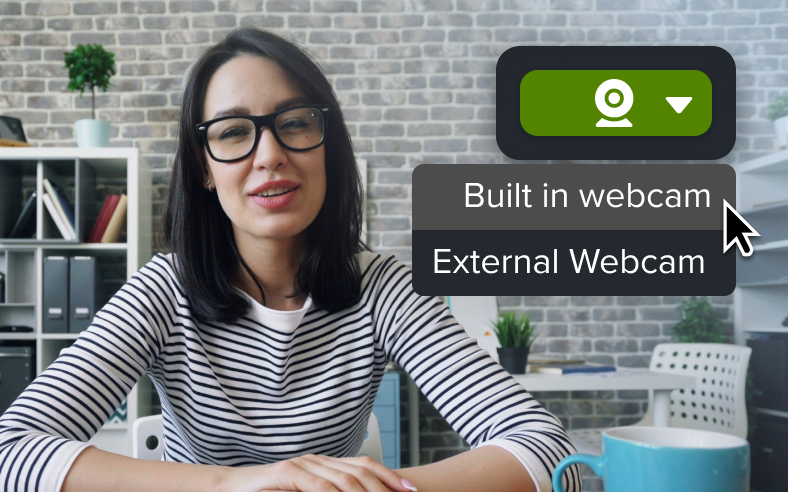
Webcam capture
Capture images from your webcam. (Mac Only)
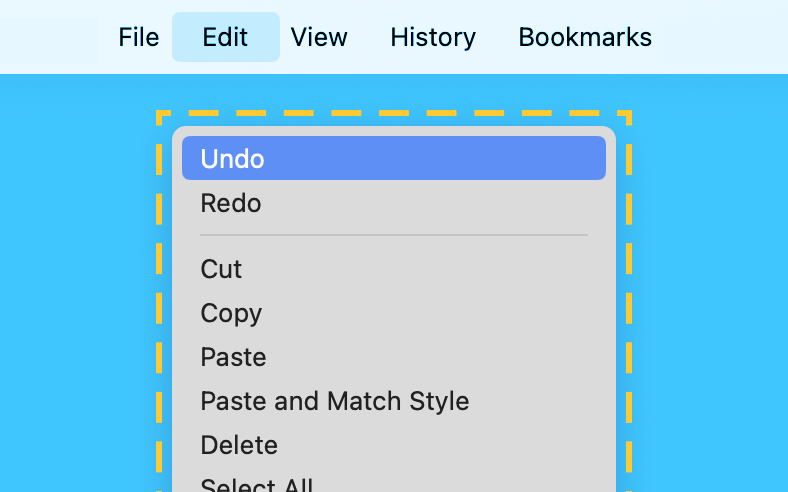
Menu and object capture
Automatically select windows, apps, and drop-down menus. (Object Capture is Windows Only)
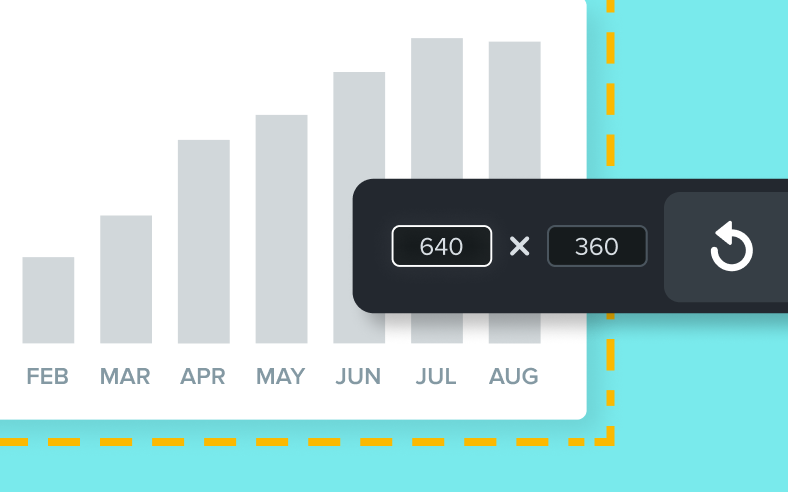
Exact capture dimensions
Set the exact dimensions of your capture area or snap to a window.
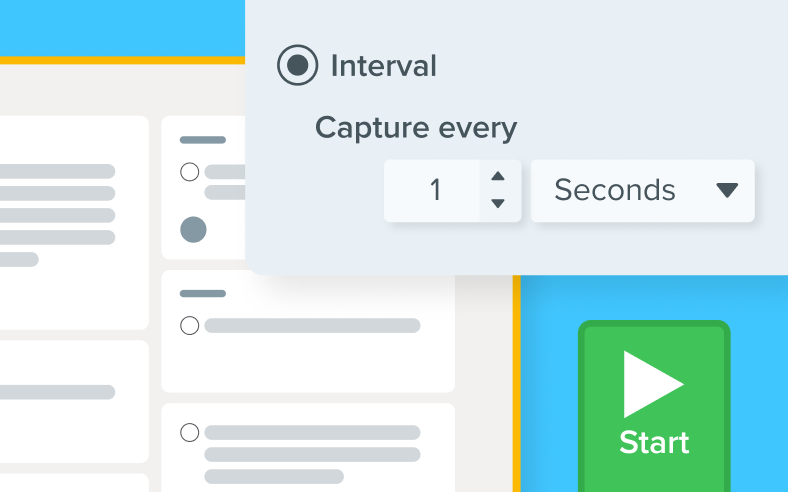
Time-lapse capture
Capture images from the same location on the screen at a regular interval. (Windows Only)
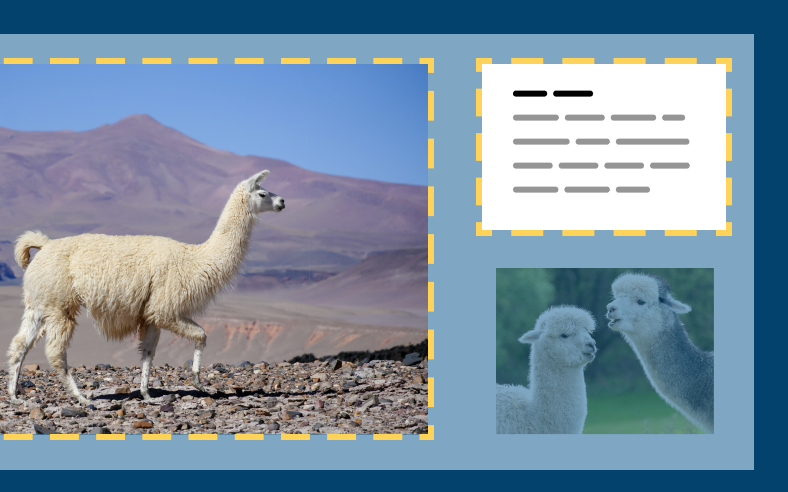
Multiple areas
Capture multiple areas on the screen in a single capture. (Windows Only)
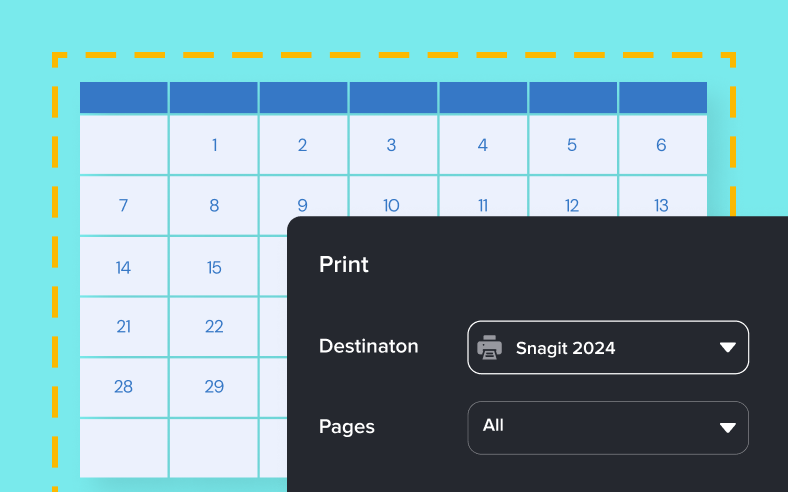
Printer capture
Send content from an application into the Snagit Editor using the application’s Print option. (Windows Only)
Enregistrement d’écran

Blur webcam video background
Maintain privacy and minimize distractions by blurring the background of your webcam video. (Mac Only)
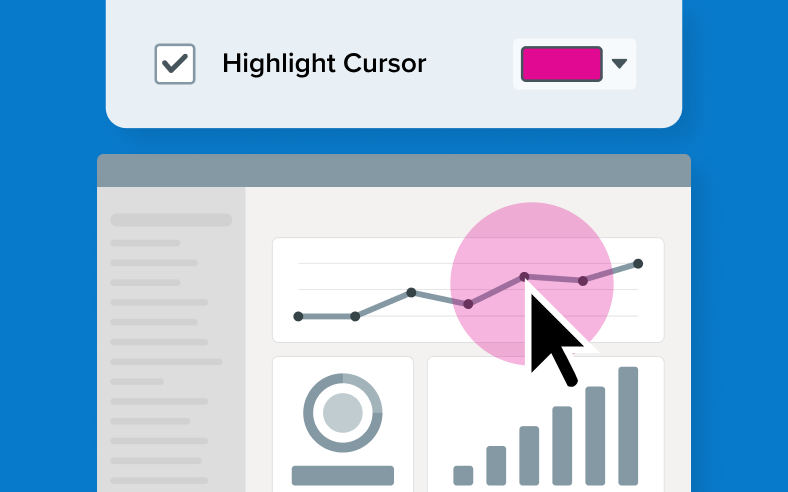
Add cursor highlight
Emphasize the cursor by surrounding it with a visible highlight during screen recordings.
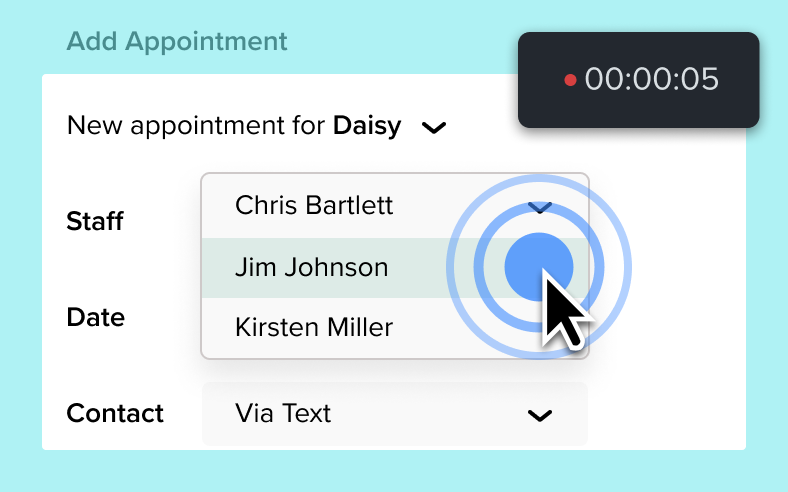
Animate clicks
Visually indicate clicks during a screen recording with a ripple effect.
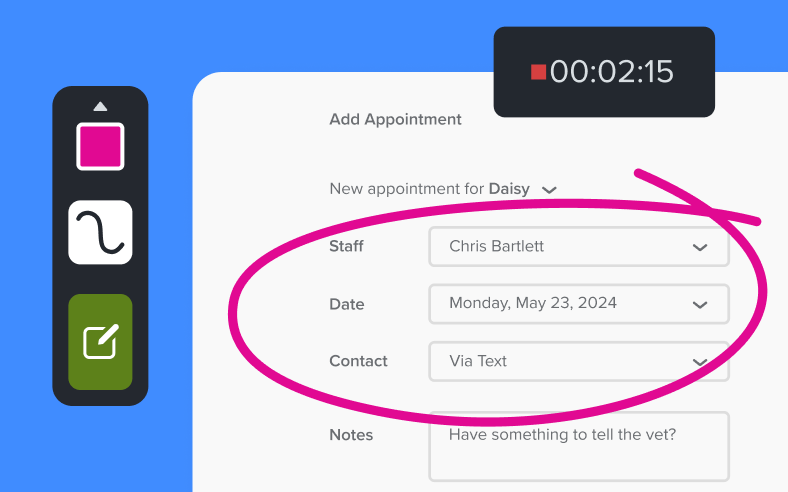
Draw on your screen while recording
Add arrows, shapes, and step numbers directly on the screen while recording.
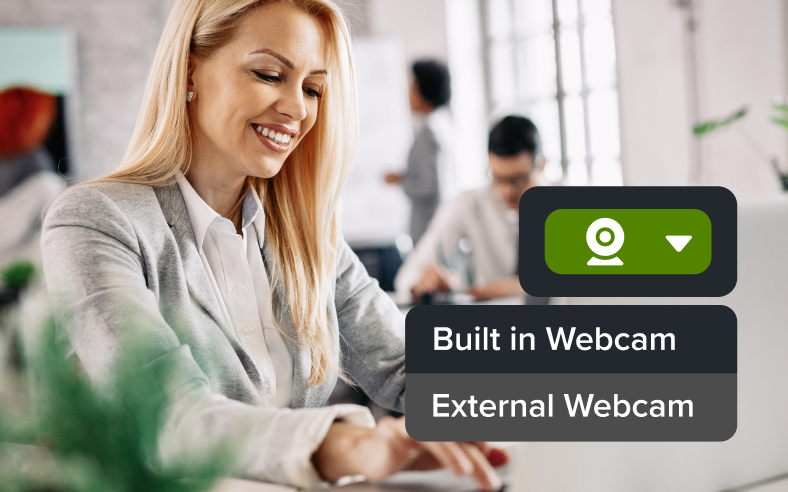
Capture webcam video
Record video from your computer’s webcam or an external camera.
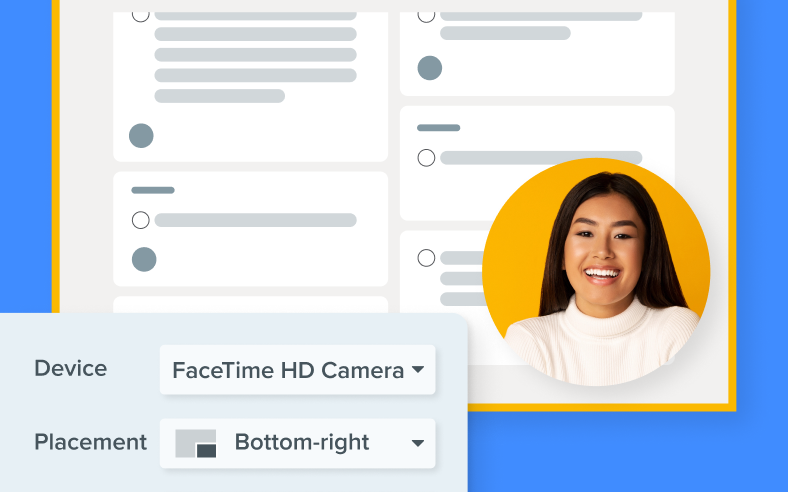
Record picture-in-picture video
Integrate your webcam video into screen recordings for a more personal and engaging viewer experience.
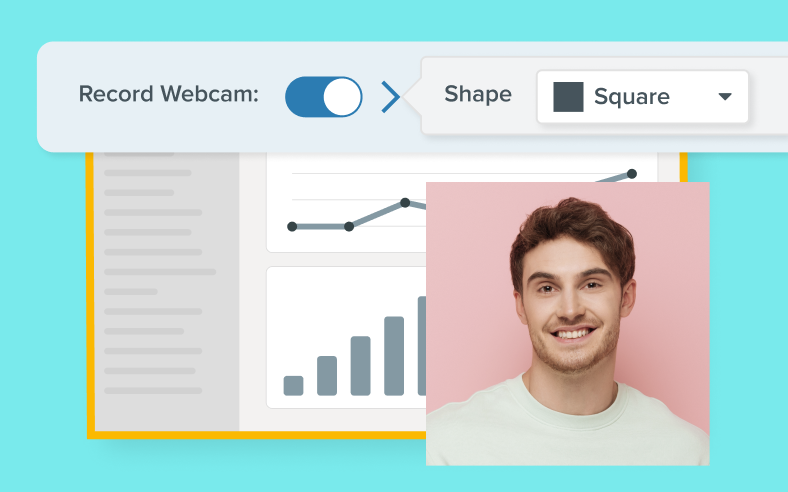
Change shape of webcam video
Adjust the size and shape of the webcam video overlay in your recordings.

Swap between screen and webcam
Seamlessly switch the focus of a recording between screen content and full-screen webcam video.
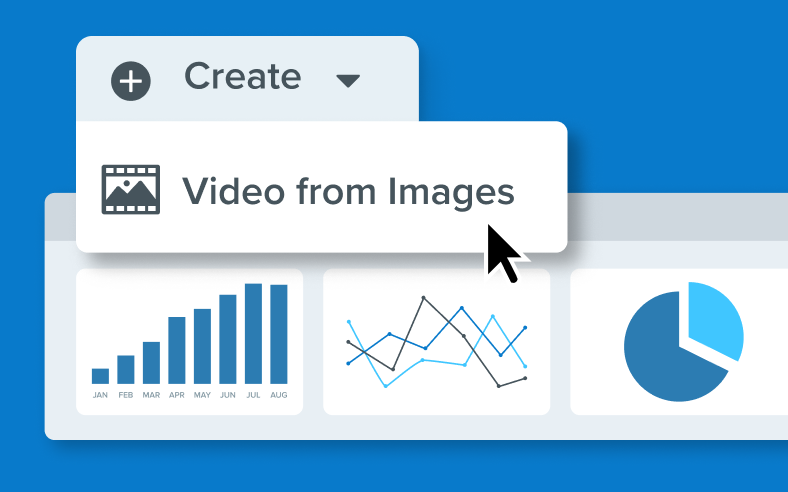
Video from images
Turn a screenshot or series of screenshots into a video with narration.
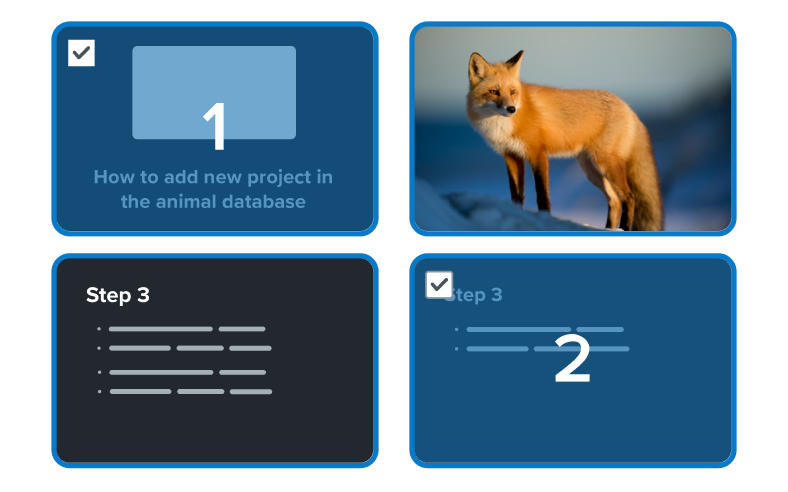
Combine clips
Merge multiple screen recordings into a single, cohesive video effortlessly.
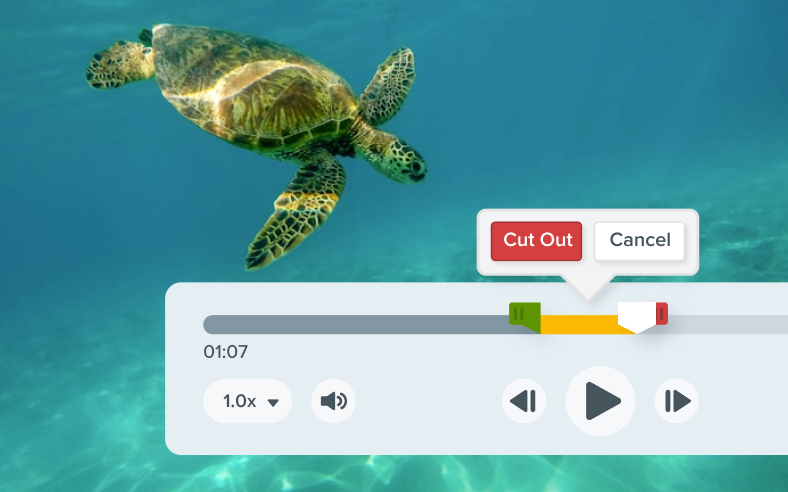
Video trimming
Easily trim the beginning, end, or any unwanted sections from your video.
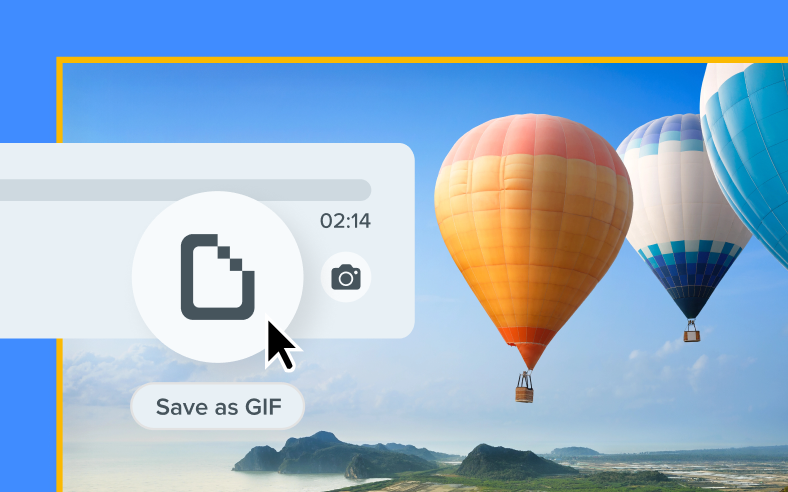
Create GIFs
Effortlessly transform your videos into GIFs.
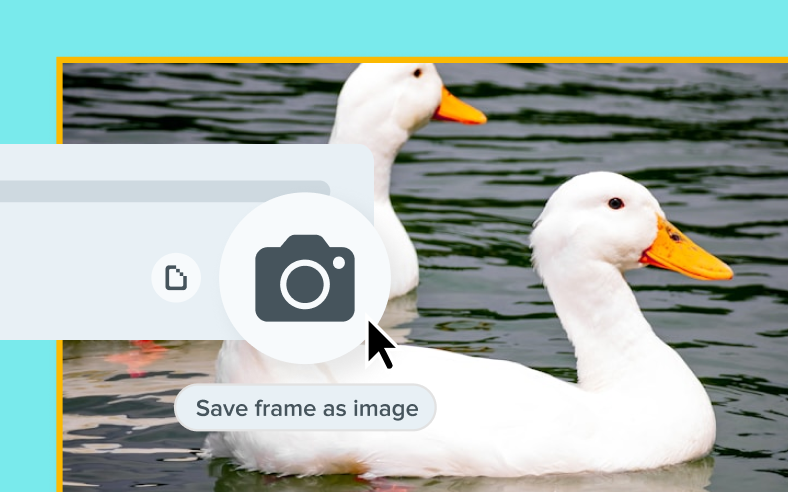
Capture frames
Capture any frame from your screen recording and save it as an image.
Audio recording
Record microphone and system audio.
Annotations
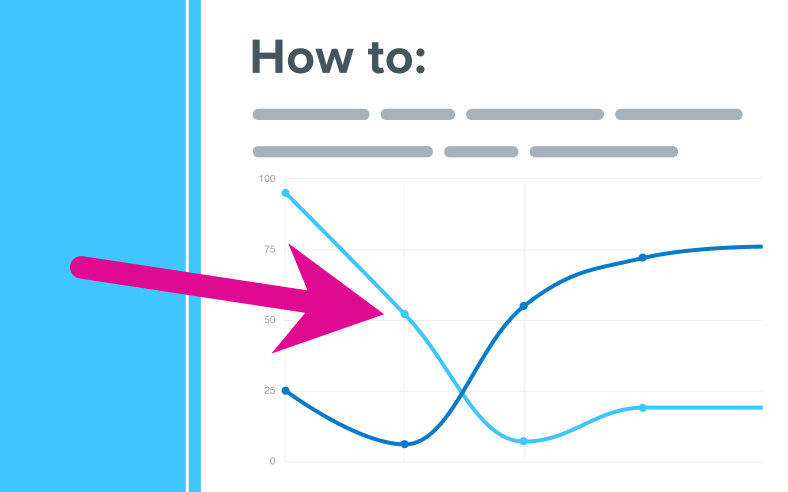
Arrows
Point to specific areas of a screenshot with arrows.
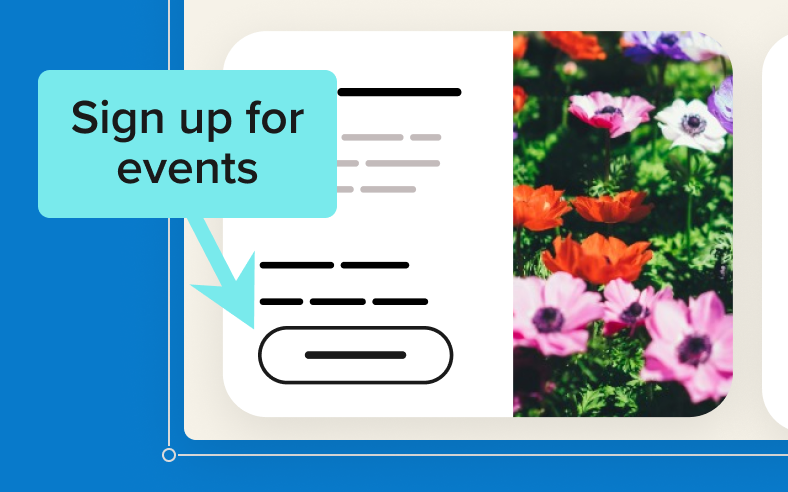
Callouts
Add context to screenshots with text boxes connected to specific parts of an image with an arrow.
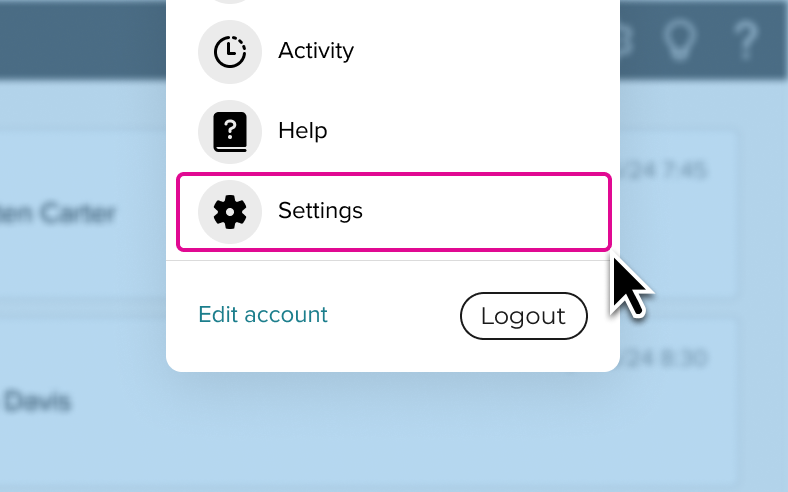
Shapes
Add rectangles, circles, and custom shapes to frame or highlight specific areas.
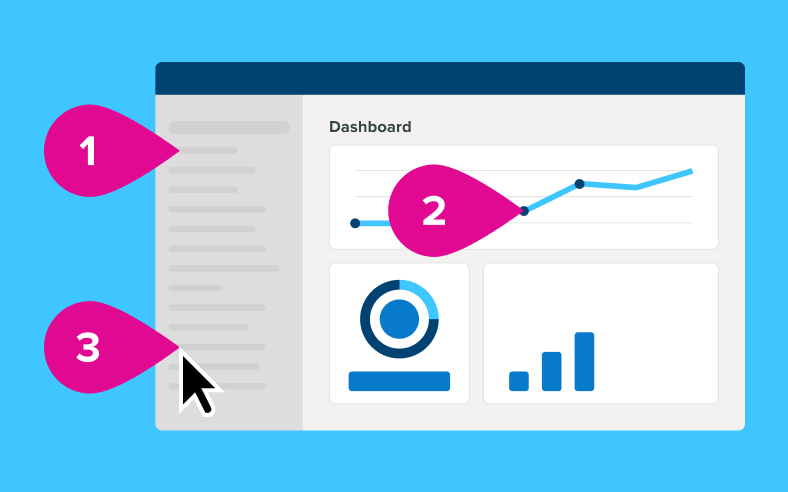
Step tool
Indicate steps in a process with numbered markers.
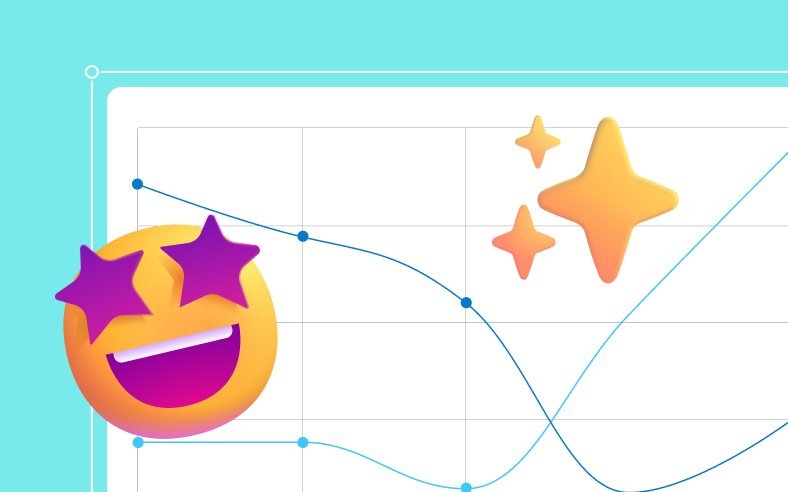
Stamps
Streamline the feedback process with stamps like approval marks and emojis.
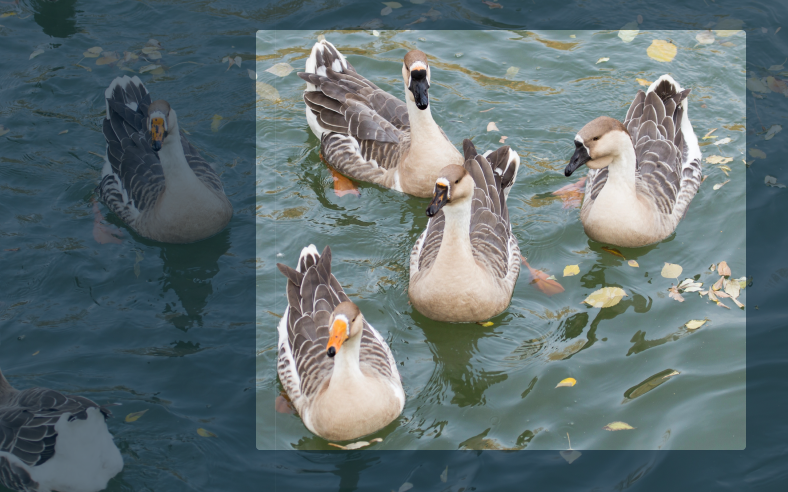
Spotlight
Dim and/or blur the surrounding areas of an image to draw attention to a specific element in a screenshot. (Mac Only)
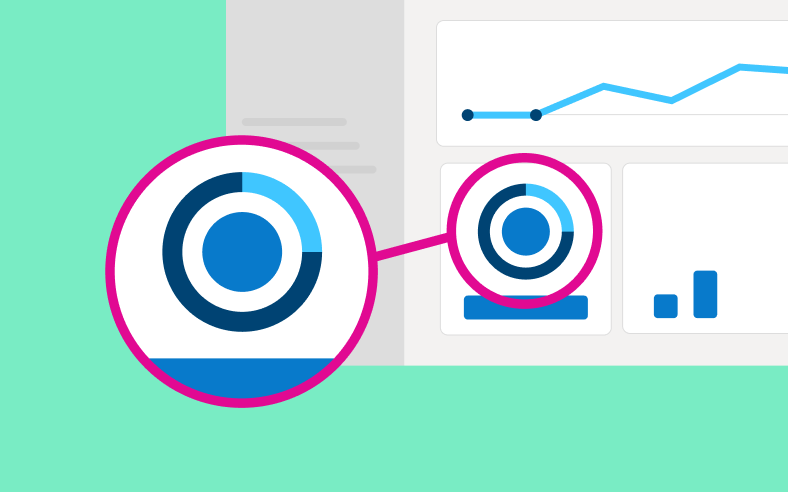
Magnify
Enlarge a specific area of a screenshot without altering the original image size.
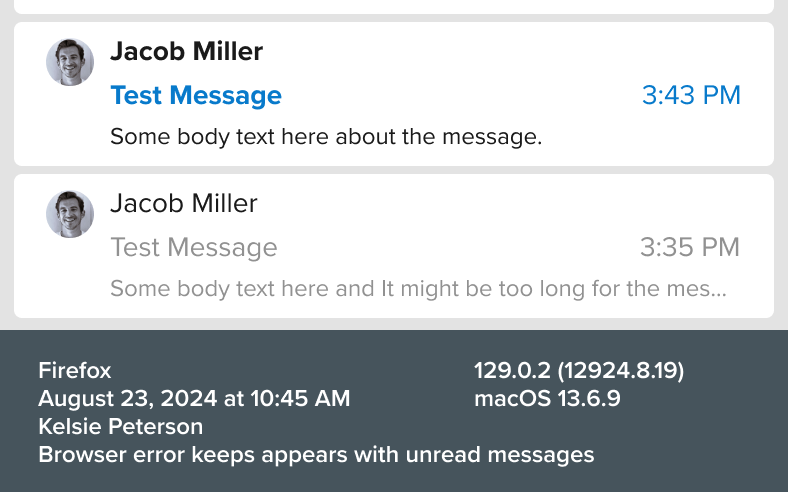
Add capture info
Add helpful contexts like the operating system, date, and app info directly to your captures.
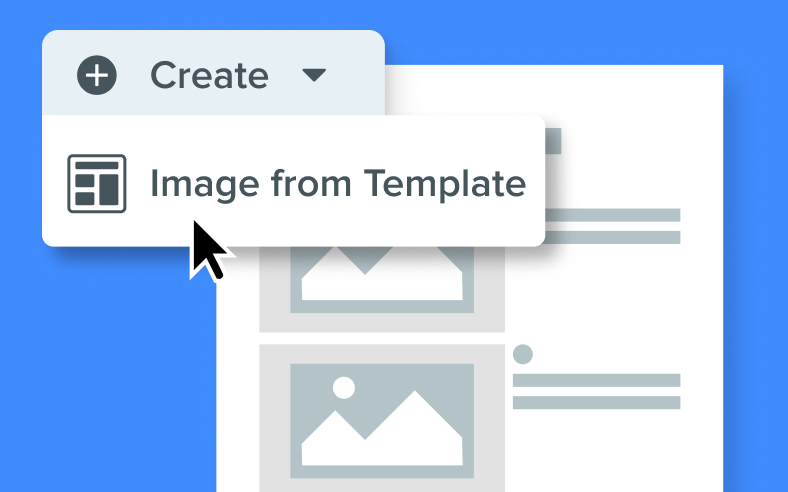
Templates
Transform your screenshots into polished step-by-step guides, timelines, and reference docs.
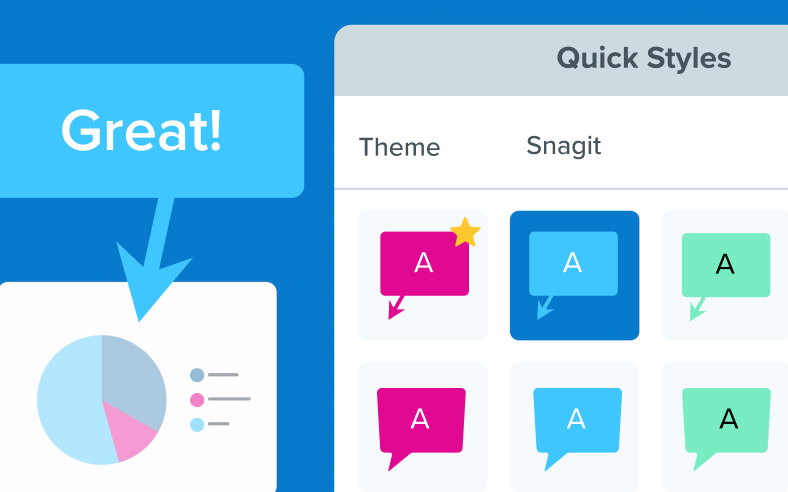
Quick styles and themes
Create custom quick styles and themes to align with a brand or choose from a collection of pre-designed styles.
Montage
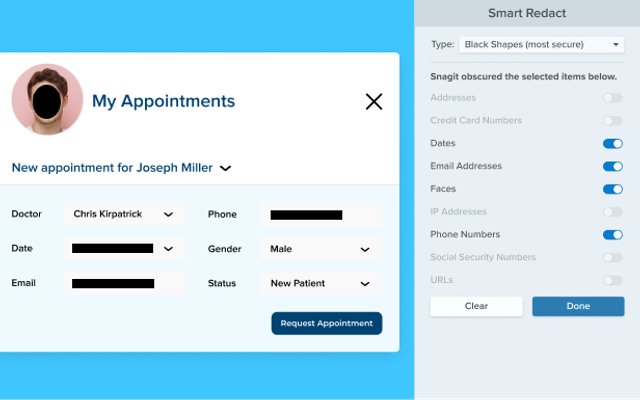

Virtual or blur webcam video background
Maintain privacy and minimize distractions by blurring the background of your webcam video. You can also choose a virtual background to create an on-brand visual setting. (Mac Only)
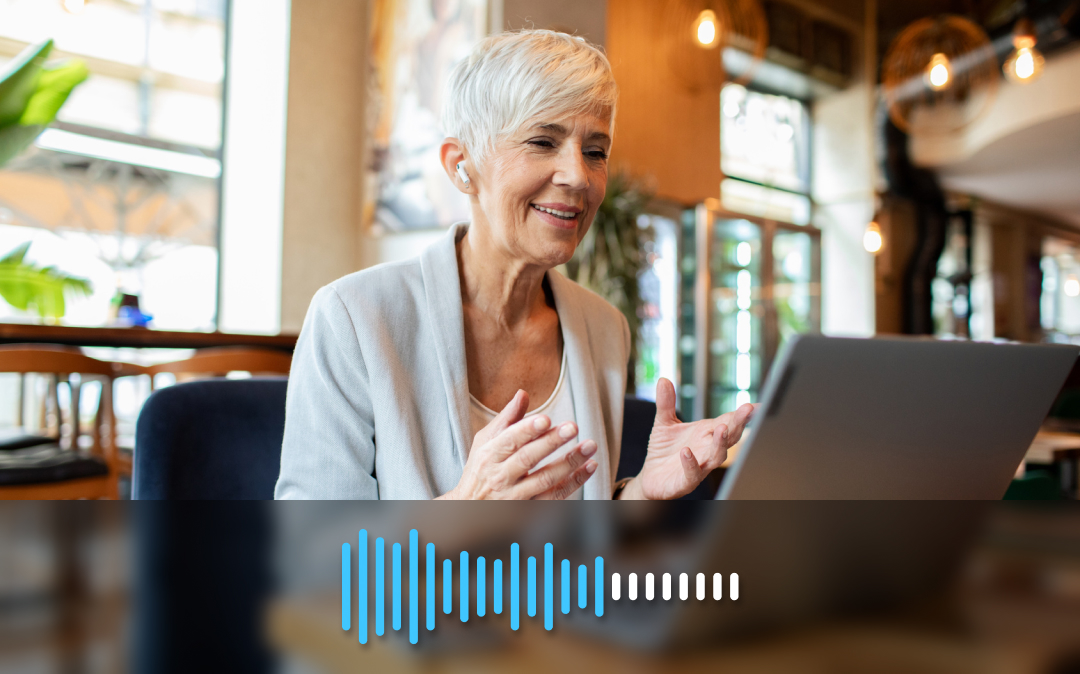
AI background noise removal
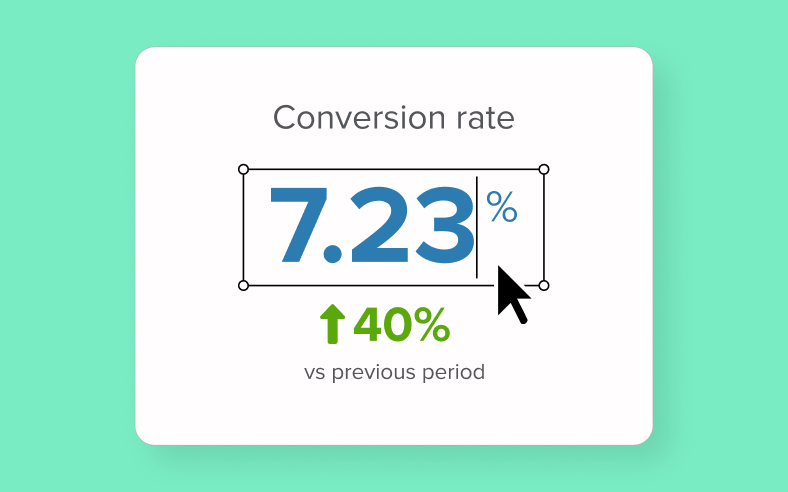
Text recognition
Edit, copy, or delete text within screenshots.
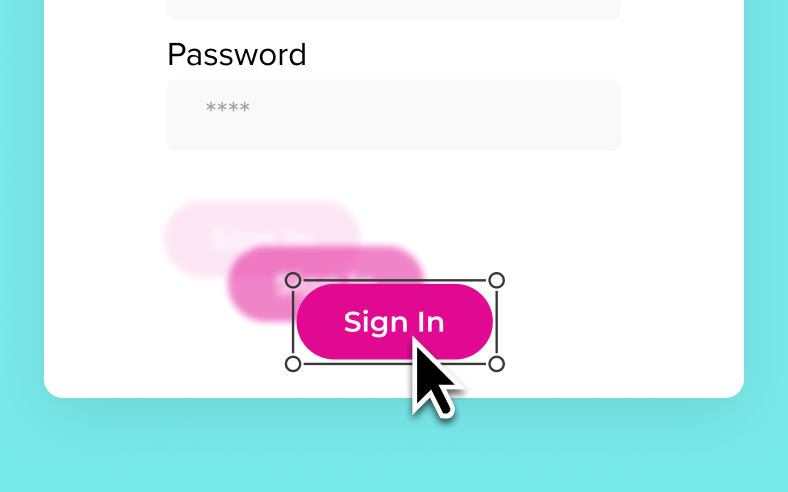
Smart move
Snagit automatically detects UI elements in a screenshot, so you can move them around.

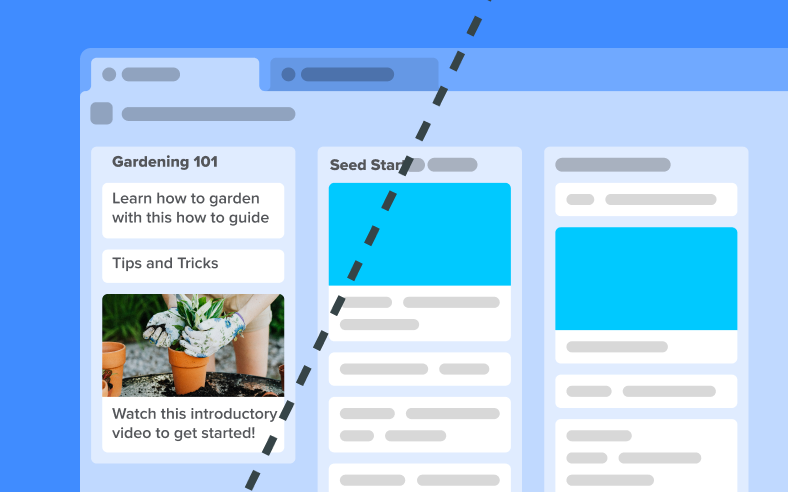
Simplify
Transform detailed screenshots into simplified graphics, ideal for creating easy-to-understand visuals.
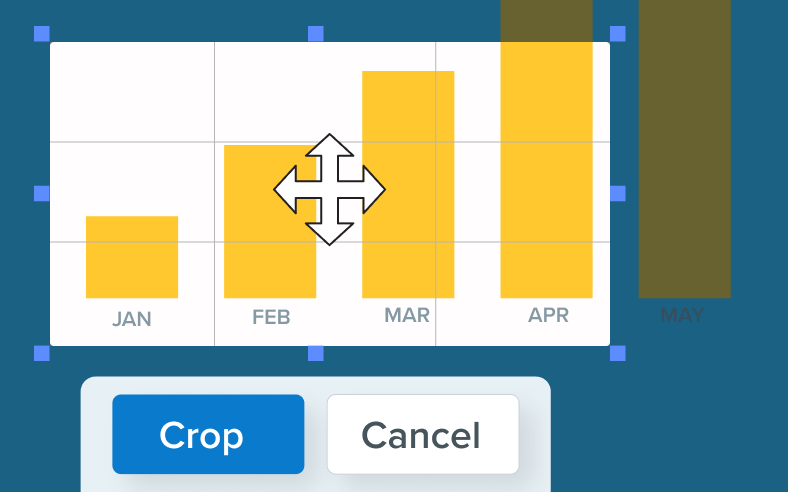
Crop, resize, and rotate
Adjust your screenshots to your desired specifications with easy-to-use cropping, resizing, and rotation tools.
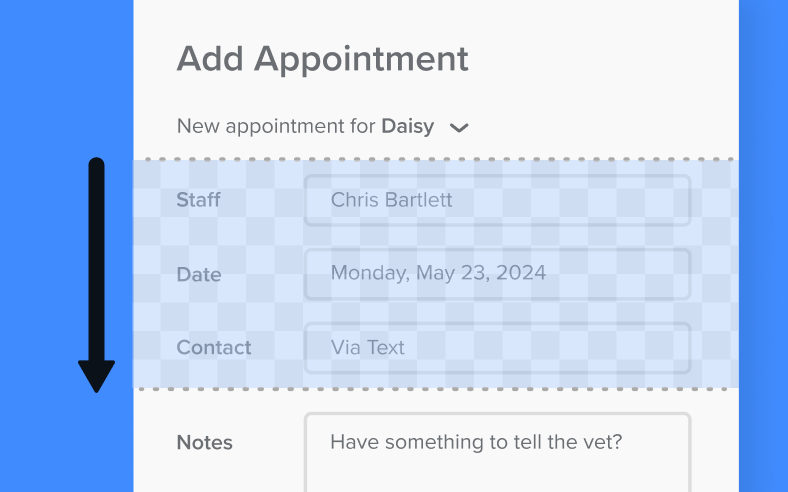
Cut out
Remove unwanted sections from your images and join the pieces together with effects like torn edges and waves.
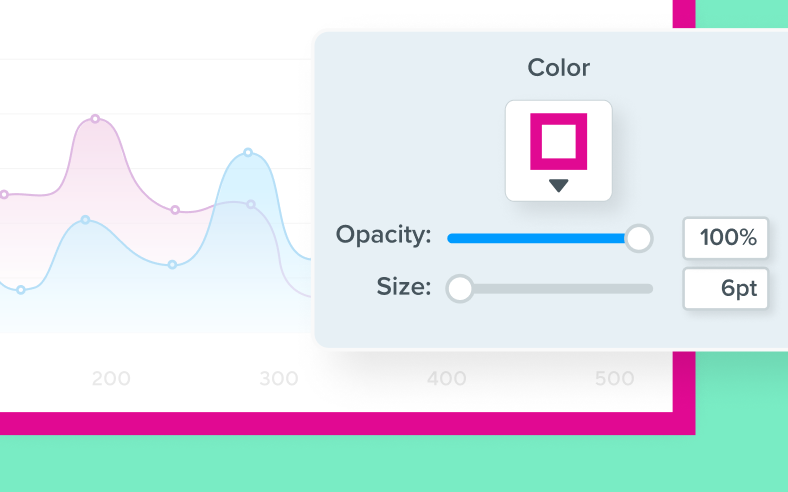
Add borders and edges
Customize the look of your screenshots with a variety of border styles and edge effects.
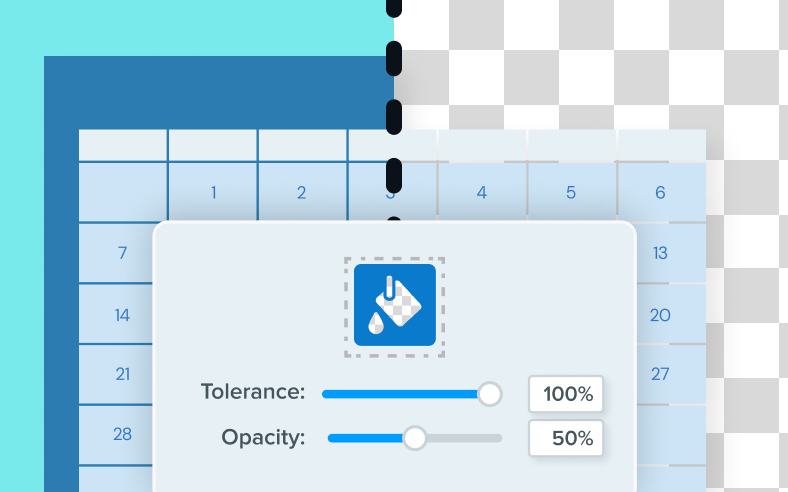
AI background remover
Create clean, professional visuals by removing the background of your screenshots.
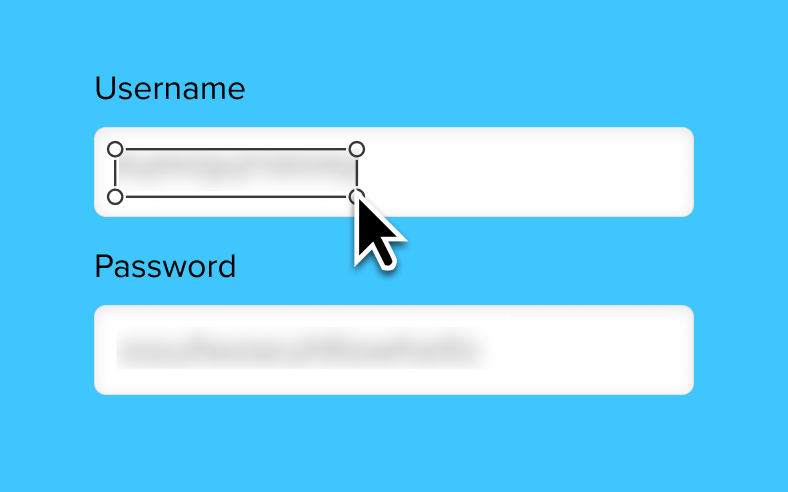

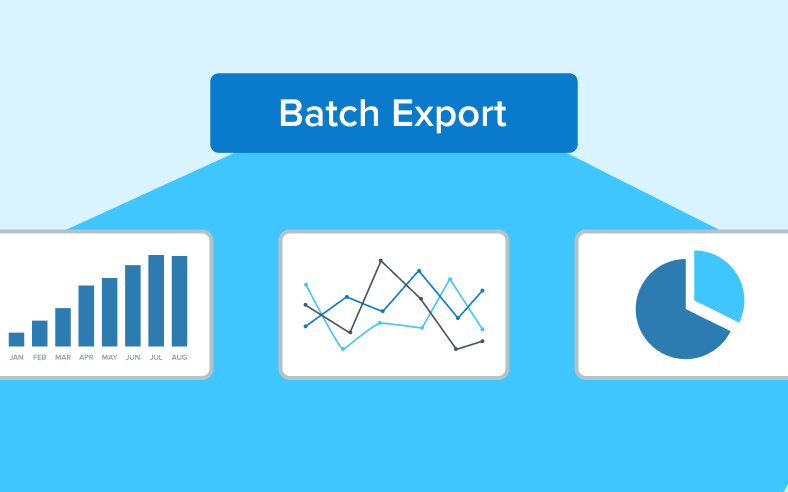
Batch processing
Export multiple images with consistent effects and edits applied simultaneously.
Gestion des fichiers

Library
Effortlessly organize and retrieve all your screenshots and recordings in one central library.
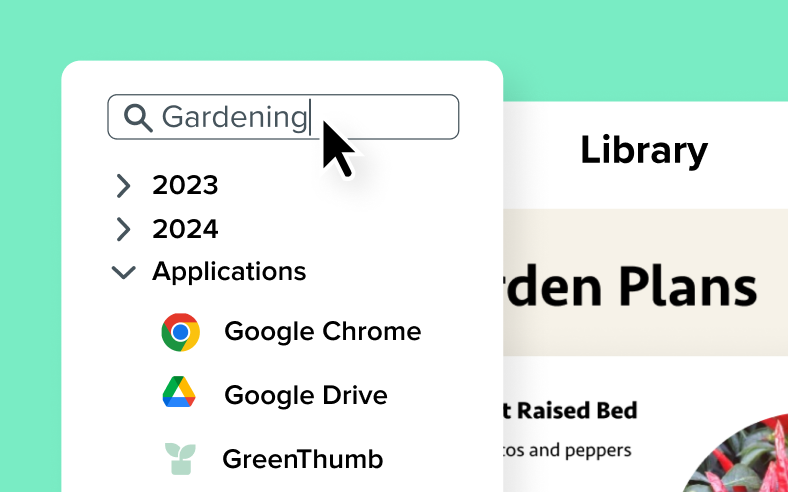
Search
Easily find your screenshots with searchable metadata applied to each image.
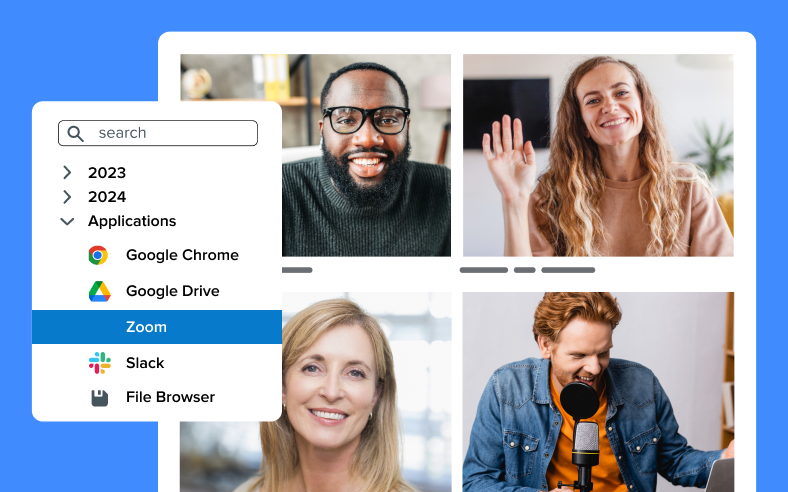
Filter and sort
Effortlessly organize your library by filtering and sorting screenshots by date, application, or webpage.
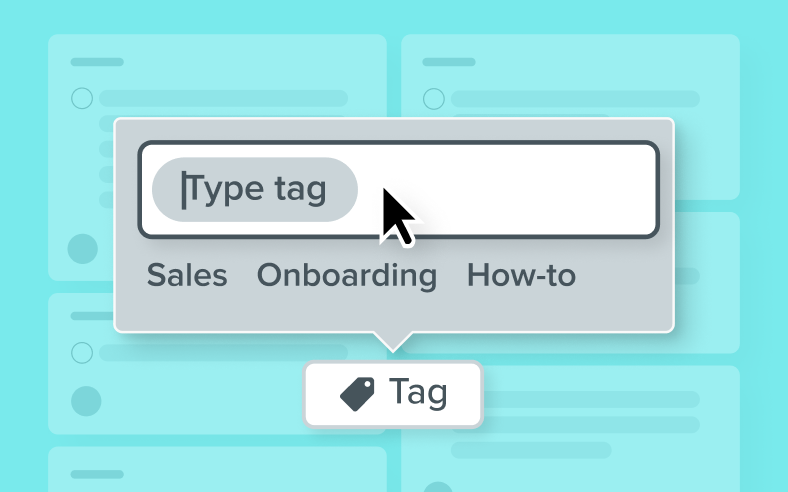
Tags
Add custom tags to your screenshots for easy organization and grouping.
Cross-platform editing
Save files in a compatible format to seamlessly edit the same screenshot on both Windows and Mac.
Exportation
Microsoft Office
Share to Outlook, Teams, OneDrive, PowerPoint and Word
Cloud services
Save to DropBox, Google Drive, One Drive
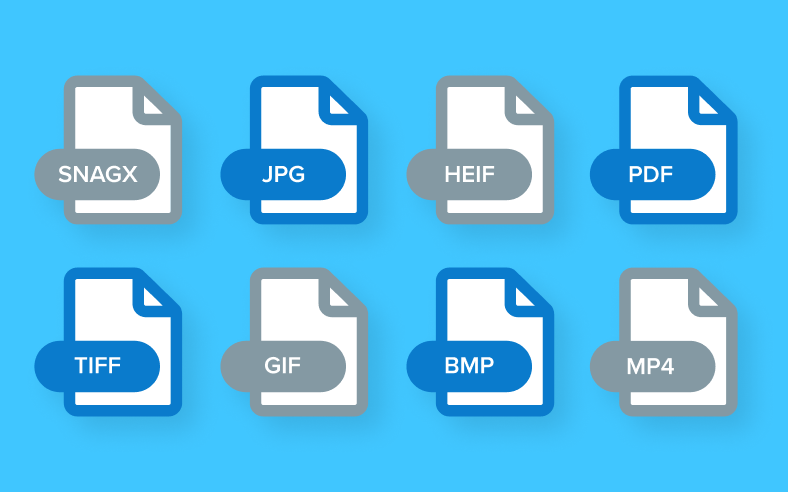
Export types
Snagx, png, jpg, heif, tiff, gif, bmp, webp, pdf, mp4
Collaboration
Screencast
Share images and videos from Snagit with your team, stakeholders, or clients for seamless collaboration.

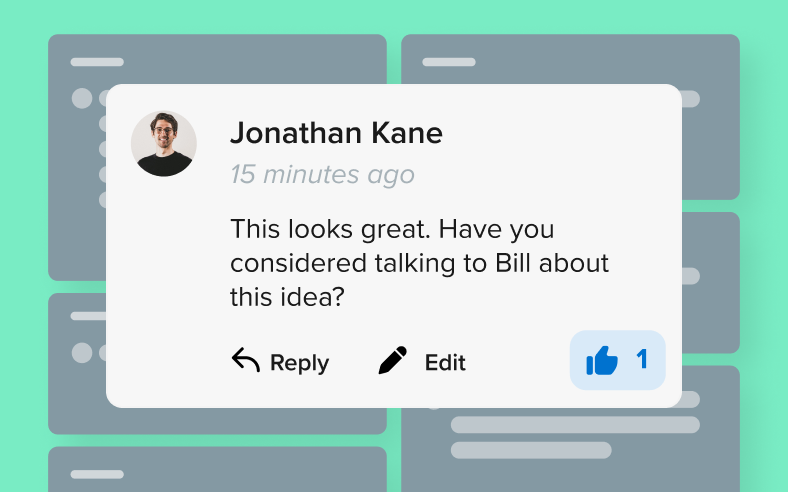
Comments and reactions
Leave annotations and comments directly on your videos and images for clear and effective feedback.

Collections
Organize your images and videos into collections that your team can access and contribute to.

Video captions
Automatically create captions for your shared videos using AI technology. (PRO)

Chapter summaries
Automatically create video chapters with AI, enabling easy navigation to key information. (PRO)